PDF to CRM Automation: Stop Retyping Data from Documents
How PDF to CRM automation reads order forms, applications and quotes, checks the data and updates your CRM, what it costs, and when it is worth doing.
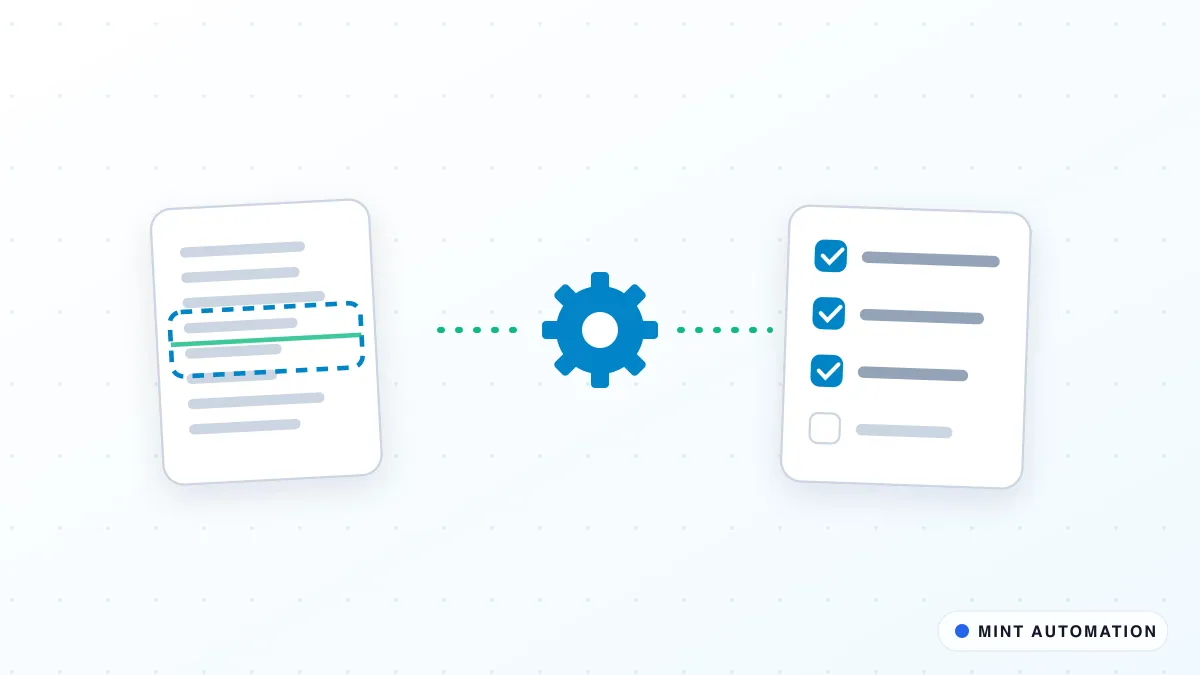
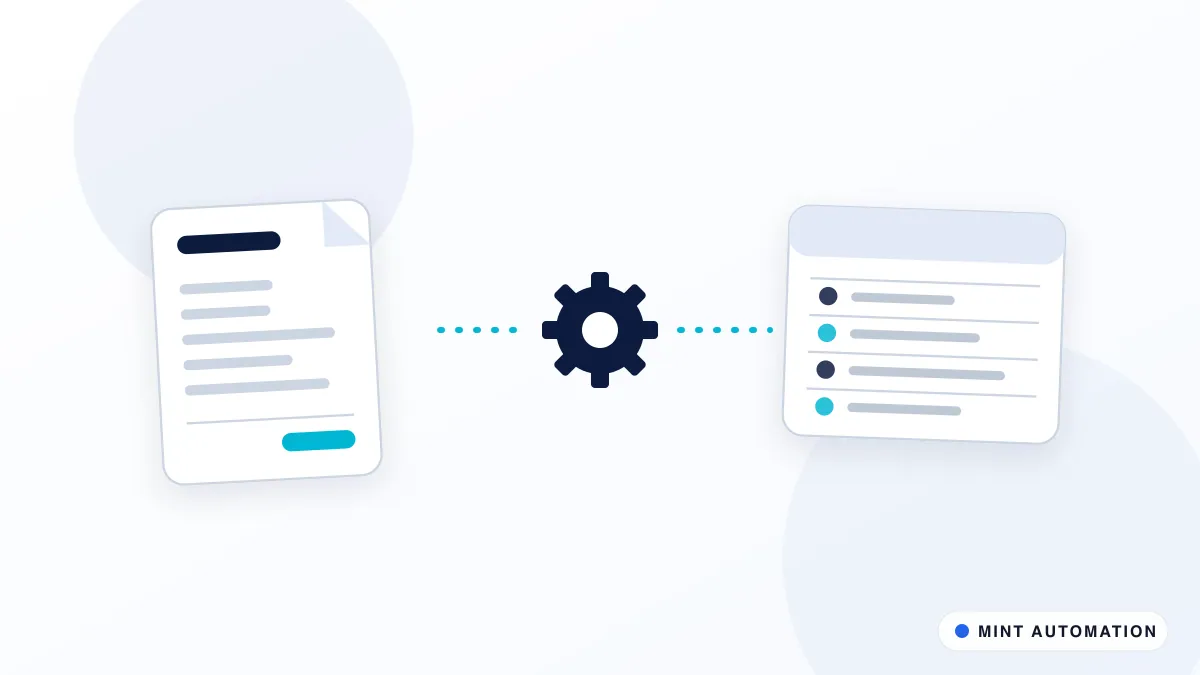
PDF to CRM automation reads the documents your customers and partners send you, such as order forms, applications and quotes, pulls out the details that matter and creates or updates the right records in your CRM. Your team stops retyping and only looks at the few documents the automation is unsure about.
This guide explains where the time really goes today, how the automation works step by step, what it costs, the mistakes to avoid and how to tell whether your business is ready for it.
Why retyping PDFs into a CRM costs more than it looks
Most teams do not think of it as a big job. A form arrives by email, someone opens it, copies the name, company, phone number, product and amount into the CRM, and moves on. It feels like a few minutes.
The real cost shows up in three places:
- It grows with your business. Every new customer, order or application adds more typing. The work never shrinks, so either someone’s week fills up or records fall behind.
- Small errors spread. A mistyped email address means the welcome message never arrives. A wrong amount flows into the quote, then the invoice, then the forecast. Fixing it later always takes longer than entering it correctly.
- The CRM stops being trusted. When records are entered late or inconsistently, sales and service teams keep their own spreadsheets “just in case”. The system you pay for becomes a second copy of the truth instead of the only one.
If any of this sounds familiar, the problem is not your team. It is a copying job that a computer can do more consistently.
What PDF to CRM automation actually does
The automation follows the same steps a careful person would, without the fatigue:
- Collects documents. It watches the places documents arrive: a shared inbox, a web form upload, a folder in Google Drive or OneDrive, or a supplier portal download.
- Identifies the document type. An order form, an application and a signed agreement need different handling, so it first works out what it is looking at.
- Reads the fields. It extracts the details you care about, for example customer name, company, contact details, line items, totals, dates and reference numbers. Modern extraction reads the meaning of the page, so it copes with layouts that change from one sender to the next.
- Checks the data. Before anything touches your CRM, it validates what it found: is the email address well formed, does the total match the line items, does this customer already exist, is the product code real?
- Updates the CRM. It creates a new lead, contact, deal or order, or updates an existing one, and attaches the original PDF so anyone can see the source.
- Flags exceptions. Anything it cannot read with confidence, or anything that fails a check, goes to a person with a clear note about what needs attention.
The result is a CRM that is updated within minutes of a document arriving, with a clear audit trail back to the original file.
Which documents and systems it works with
Most businesses start with the document that arrives most often. Common starting points include:
- Order and booking forms that customers fill in and send back.
- Applications, such as account, credit, membership or student applications.
- Purchase orders from business customers.
- Quotes and proposals received from suppliers or partners.
- Signed agreements, where the key dates and values need to be recorded.
On the CRM side, Zoho CRM, HubSpot, Salesforce and Pipedrive all have integrations that an automation can use directly. Many businesses also want the same data in a second system, for example a spreadsheet for operations or an accounting tool for invoicing. That is usually part of the same project rather than a separate one. Our document extraction product covers the reading step, and a custom automation connects it to the systems you already use.
Accuracy: how to keep bad data out of your CRM
Accuracy is the question every business owner asks first, and rightly so. A fast automation that fills the CRM with mistakes is worse than no automation at all.
A well-built setup protects you in four ways:
- Confidence thresholds. Each extracted value comes with a measure of how sure the system is. Below the threshold, a person confirms it.
- Business rules. Checks that reflect how your business works, such as “orders above a certain value need approval” or “the VAT or GST number must match the country”, catch problems a generic tool would miss.
- Duplicate detection. Before creating a new contact or company, the automation looks for an existing one, so you do not end up with three versions of the same customer.
- The original is always attached. Anyone can open the source document from the CRM record and see exactly where a value came from.
The aim is not to remove people from the process. It is to move them from typing everything to checking only what genuinely needs a human eye.
What PDF to CRM automation costs
Cost depends mainly on how many document types you have, how much their layouts vary and how many systems need updating.
As a guide, most standard projects with one or two document types and one CRM typically fall between $499 and $1,200 as a fixed price. Projects that connect several systems, such as a CRM plus an ERP or accounting platform, are usually in the $1,500 to $3,500 range. You can see how we structure pricing on our services page.
Running costs are usually small: document reading is often charged per page by the underlying service, and for most small and mid-sized businesses that amounts to a modest monthly figure. A good provider will estimate it for you based on your real volumes before you commit.
To judge whether it is worth it, compare the fixed cost with the hours your team spends retyping each month, plus the cost of the errors you currently catch late. Our free automation assessment does this calculation with your own numbers.
Common mistakes to avoid
- Starting with the hardest document. Begin with the most common, most consistent document. Quick, visible wins build confidence for the trickier ones.
- Skipping the rules conversation. The extraction is the easy part. Agreeing what counts as a valid record, and who handles exceptions, is what makes the automation trustworthy.
- Ignoring messy CRM data. If your CRM already has duplicates and outdated contacts, automation will match against that mess. A clean-up first, for example with a data cleaning script, pays for itself.
- No owner for exceptions. Flagged documents need a named person and a simple daily routine, or they quietly pile up.
- Treating it as set and forget. Forms change, new customers send new layouts and CRM fields get renamed. Monitoring and small adjustments keep the automation reliable over time.
What a typical rollout looks like
A practical rollout follows a short, predictable path. You can read more about it on our how it works page.
- Map the current process. Which documents arrive, where, how often, and what happens to each one today.
- Agree the fields and rules. Exactly which values go where in the CRM, and what should be checked before they do.
- Build and test with real documents. The automation is tested against a batch of your genuine past documents, including the awkward ones, before it goes live.
- Run side by side briefly. For a short period your team checks the automation’s work, so everyone sees it is reliable.
- Switch over and monitor. The automation takes over the routine work, exceptions go to the named owner, and performance is watched and tuned.
Is your business ready for PDF to CRM automation?
You are likely ready if most of these are true:
- The same kinds of documents arrive every week, mostly by email, upload or download.
- Someone on your team regularly copies details from those documents into your CRM or a spreadsheet.
- You can describe what a correct record looks like, even if it is only in your head today.
- Errors or delays in that data cause follow-up problems for sales, service or finance.
If you are a business that handles applications or orders in volume, you are probably already losing hours every week to this job. If you only receive a handful of documents a month, the time saved may be too small to justify a project yet, and we will tell you so honestly. You can also browse examples of the work we do by industry.
How Mannveer International (MINT) Can Help
Mannveer International (MINT) builds PDF to CRM automations around the documents, CRM and rules you already have. We start by looking at your real documents and how they move through your team today, agree the checks that matter to you and give you a fixed quote before any work begins. Standard setups are typically delivered in 3 to 7 business days, with clear handling for anything the automation is unsure about, so nothing reaches your CRM on a guess.
After launch we monitor the automation and adjust it when your forms, customers or systems change, so your team gets its time back without taking on a new maintenance job.
- Contact MINT to describe the documents you handle today
- Connect with MINT directly by WhatsApp or phone
- Explore MINT case studies to see the kind of work we deliver
- Take the free automation assessment to check how automatable your document work is
FAQ
What kinds of PDFs can be read automatically?
Most business documents work well: order forms, application forms, purchase orders, quotes, delivery notes and signed agreements. Typed PDFs are the easiest. Scanned pages and photos also work, as long as the text is legible; handwriting is possible but usually needs a person to confirm the result.
Which CRMs can PDF data be sent to?
Any CRM with a proper integration, such as Zoho CRM, HubSpot, Salesforce or Pipedrive, can be updated directly. Where a system has no integration, the automation can still fill in its web screens the way a person would, so the same result is reached.
What happens when the automation is not sure about a value?
It should never guess. Fields it cannot read with confidence are flagged and sent to a person, usually with the document and the suggested value side by side, so checking takes seconds rather than retyping the whole record.
How long does a PDF to CRM automation take to set up?
For one document type and one CRM, MINT typically delivers in 3 to 7 business days. Several document types, or a CRM plus an accounting or ERP system, take longer and are scoped with a fixed quote before work starts.
Have a repetitive task?
Tell us what your team does by hand. We will tell you honestly whether it is worth automating.